A friendly Mac app that does the confusing part of putting video online, no tech skills needed
Putting a video on your own website sounds simple. You recorded it, so just upload it, right? Then a visitor on their phone taps play and waits. And waits. The file is too big, the format is wrong, or it just won’t play in their browser.
That’s the problem Encodia sets out to solve. It’s a new app for the Mac that takes the videos you already have and turns them into files that play smoothly on a website, on any device. The best part is that you don’t need to understand how any of it works. You can download Encodia free from the Mac App Store, or read more at encodia.app.
We spent some time with it to see whether it’s really as easy as it claims. Here’s what we found.
First impressions: it’s just one window
Open Encodia and you get one clean window. There are no menus full of strange settings, and no wall of numbers to decode. You drag your video onto the window, or onto the Encodia icon in your Dock, and it shows up as a neat little card.
That card is handy. It shows your video, and it gives you a rough idea of how big the finished file will be before you start. No surprises.
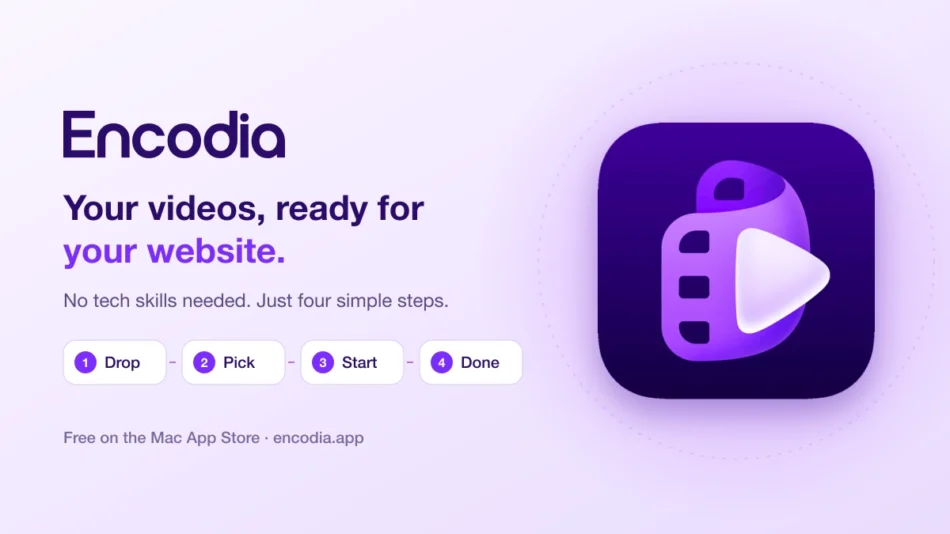
Using it takes four steps
The whole process really is this short:
- Drop in your video. Drag it in, or right-click it in Finder and choose Open With.
- Pick a format and size. More on what these mean below.
- Choose a quality setting. Efficient, Balanced or High Quality.
- Click Start. Encodia lets you know with a notification and a sound when it’s done.
That’s it. You can go and make a cup of tea while it works.
The formats, in plain English
Encodia gives you three choices. Here’s what each one is for, without the jargon:
- HLS is the one to pick if your videos live on your own website. It chops the video into small pieces, so it starts playing almost straight away. It also adjusts the picture quality to suit each viewer’s internet speed, much like big streaming services do. Someone on slow mobile data still gets smooth playback, and someone on fast Wi-Fi gets a sharp picture.
- MP4 is the safe, plays-everywhere choice. If you just want a single video file to share or upload, this is it.
- WebM is a smaller, web-friendly file that most modern browsers play happily.
Not sure? The app’s own advice is simple: hosting on your own site, choose HLS. Want a file that plays anywhere, choose MP4.
As for the quality settings, Efficient makes smaller files, High Quality makes the sharpest picture, and Balanced sits in the middle. Balanced is a good place to start.
Features we liked
It takes almost any video. Videos from your phone, your camera or a screen recording should all go straight in. Encodia reads the common types, such as MP4, MOV and MKV, plus plenty of others.
Trim the awkward start. Most of us spend the first few seconds of a recording adjusting the camera or clearing our throat. Encodia lets you cut that bit off before converting.
It’s quick, and your Mac stays calm. Encodia uses the video chip built into your Mac, so conversions are fast and your fans don’t start roaring.
Neat names for a series. If you make a course, a class or a run of episodes, Encodia can number your videos for you, like AZ001, AZ002 and so on. It keeps everything tidy.
Your logo and intro, added for you. With the paid version, you can put your logo in the corner of every video and add your intro clip to the start. No video editing needed.
It can upload for you. This is a real time-saver. If your website has a server, you add its login once, and Encodia sends each video there as soon as it’s ready. (If you’re not sure what your server details are, your web host can tell you.)
Is it safe and private?
Yes, and this is one of Encodia’s strongest points. Everything happens on your own Mac. Your videos aren’t sent off to some company’s computers to be processed, and the app doesn’t track you or collect your information. If you add a server login, it’s kept in your Mac’s Keychain, the same secure place your Mac keeps your other passwords.
How much does it cost?
Encodia is free to download, and the free version is genuinely usable. You can convert one video at a time, at up to full HD (1080p), in all three formats.
Encodia Pro is a one-off purchase, not a monthly subscription. It adds:
- Converting lots of videos, or a whole folder, in one go
- Uploading straight to your website’s server
- Higher resolutions, including 4K and 8K
- Your logo and intro on every video
- Up to four videos converting at the same time
Pro costs $29.99 until December 31, 2026, then $39.99. You pay once and it works on every Mac signed in to your Apple Account.
Anything we didn’t love?
A couple of small things. Encodia is Mac only, so Windows users are out of luck for now. And if your website stores its videos with a cloud storage service, rather than an ordinary web server, the automatic upload won’t work with it yet. The developer says support for those is planned.
You’ll need a Mac running macOS 14 Sonoma or later, which covers most Macs from the last several years.
Our verdict
Encodia is a lovely example of an app that does one job and does it well. It takes something that usually means confusing software or a monthly fee, and turns it into a few clicks. If you run a website, teach online, sell courses, or just want your videos to play nicely for everyone, it’s well worth trying, especially since you can start for free.