If you regularly take screenshots of long webpages, there is a good chance you’ve heard of GoFullPage.
For years, it has been one of the most popular Chrome extensions for capturing an entire webpage in a single screenshot. The idea is simple: click once, wait a few seconds, and save the complete page.
That simplicity is exactly why millions of people use it.
But recently, some Chrome users started looking for alternatives after GoFullPage’s original Chrome Web Store listing became temporarily unavailable. The GoFullPage team says the issue is related to a copyright matter and not a security problem, and they currently point users toward a separate beta extension while the situation is resolved.
If you’re one of those users, or if you’re simply looking for a different way to capture webpages, I’d like to introduce SiteCapture.
Try SiteCapture on the Chrome Web Store
Why I built SiteCapture
I didn’t start with the goal of building the biggest screenshot extension with hundreds of features. There are already plenty of powerful screenshot tools available. Instead, I wanted something that stayed simple while giving users more control over what they capture. Sometimes you need the entire webpage. Sometimes you only need what’s currently visible. And sometimes you need one specific section, image, card, or element from a page. That’s the basic idea behind SiteCapture. You choose what you want to capture, choose your output format, and take the screenshot.
No account.
No cloud workspace.
No complicated setup.
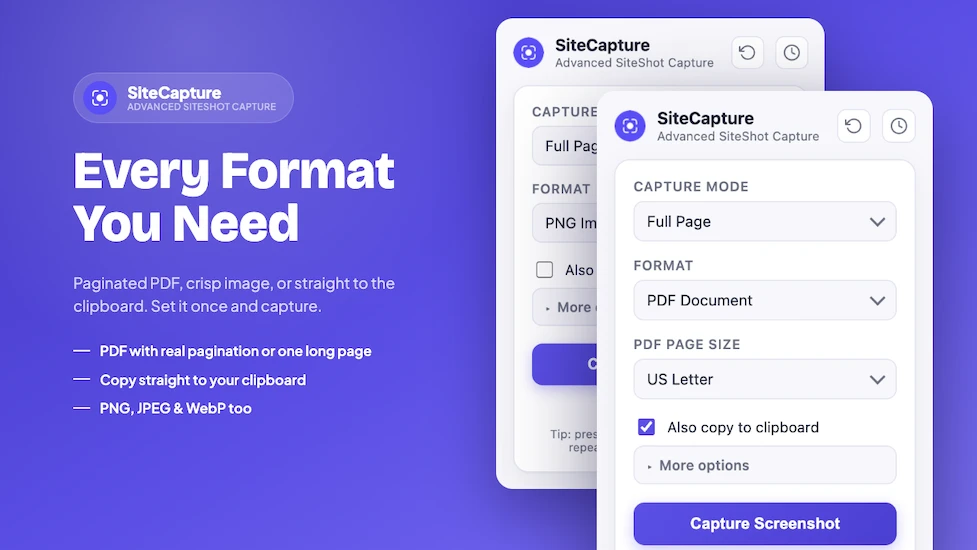
The extension is designed to keep the workflow straightforward while still offering useful options when you need them. According to the Chrome Web Store listing, SiteCapture supports full-page capture, visible-area capture, and selected-area capture. Screenshots can be saved as PNG, JPEG, WebP, or PDF.
More than just a full-page screenshot
The obvious use case is capturing an entire webpage. That works well when you’re saving:
- Long articles
- Product pages
- Receipts
- Documentation
- Design inspiration
- Research material
- Webpages that need to be shared as a single image
But full-page capture isn’t always what you need. That’s why SiteCapture also includes a Visible Area mode for capturing what is currently on your screen. There is also Select Area mode. You can drag over a specific region or select part of a webpage instead of capturing everything. This sounds like a small thing, but it makes a difference in everyday use. You don’t always want to take a full screenshot and then open another application just to crop out 90 percent of it. Sometimes you just want one section and you’re done.
Handling long pages properly
Long webpages can be surprisingly difficult to capture correctly. Sticky headers, fixed navigation bars, lazy-loaded images, and constantly changing page layouts can create problems during scrolling captures. One issue people often notice is a sticky header appearing multiple times throughout a screenshot. Another is duplicated seams near the bottom of a long page. SiteCapture was built with those situations in mind. Its Chrome Web Store listing specifically highlights handling sticky headers so they are captured once rather than repeatedly, while also avoiding duplicated seams on long pages.
Of course, no screenshot extension should be judged purely by a feature list. The real test is whether it works on the webpages you actually use. A simple blog might be easy for almost any extension. A long dashboard, a modern web application, or a page with fixed elements and lazy-loaded content is where things become more interesting.
Choose the format you actually need
Another reason I wanted to build SiteCapture was to avoid forcing users into one output format. Sometimes PNG is perfect. Sometimes a smaller JPEG makes more sense. WebP can be useful when file size matters. And for documents, reports, or sharing a webpage in a more traditional format, PDF is often the better choice. SiteCapture supports PNG, JPEG, WebP, and PDF exports. For PDFs, users can choose formats including A4, US Letter, Legal, or a continuous page.
The goal is simple: choose the format before capturing instead of taking a screenshot first and then having to convert it somewhere else.
A useful feature for responsive websites
One feature I’m particularly interested in is custom-width capture. SiteCapture can capture a webpage at a custom width without requiring you to manually resize your browser window. That can be useful for developers and designers who want to see how a layout behaves at different widths. It can also be helpful when you want to create a screenshot with a specific output size. Again, this isn’t meant to replace a full responsive testing environment. It’s simply a practical option built into a screenshot workflow.
Privacy matters
A screenshot can contain a lot of information. You might be capturing a private dashboard, an internal tool, financial information, or something from a logged-in account. For that reason, I wanted SiteCapture to remain local-first.
According to the Chrome Web Store listing, SiteCapture makes no network requests and does not send captures to a server. Screenshots and capture history remain in the browser’s local storage. Google also shows the extension as declaring that it does not collect or use user data. That means you don’t need to create an account just to take a screenshot. You install the extension and use it.
Built for both occasional and frequent users
The main interface is intentionally simple. Most people can select their capture mode, choose a format, and press the capture button. But there are also a few features for people who use screenshots regularly.
SiteCapture includes a local history of recent captures, allowing users to revisit and re-download them. It also includes a keyboard shortcut that can repeat the last capture settings from any tab. That shortcut is particularly useful once you have a workflow you repeat frequently. For example, if you regularly capture full pages as PNG files, you shouldn’t have to reopen the extension and select the same options every single time.
Is SiteCapture better than GoFullPage?
Honestly, I don’t think that’s the right question. GoFullPage is a mature product with a huge user base and years of development behind it. Its official website says it is trusted by more than 11 million users. SiteCapture is newer. The goal isn’t to pretend that a new extension has suddenly replaced every established screenshot tool overnight. Instead, SiteCapture offers a different workflow.
If you want a simple full-page screenshot, you can do that.
If you want the visible screen, you can do that too.
If you only want one area of the page, you don’t need to capture everything first.
You can also choose between PNG, JPEG, WebP, and PDF, keep a local history of recent captures, use a shortcut to repeat your workflow, and keep everything on your device. For some users, that flexibility may be useful. For others, their existing screenshot extension may already do everything they need.
And that’s completely fine.
Try it and decide for yourself
Screenshot extensions are one of those tools where the best choice often comes down to your own workflow. My suggestion is simple: try SiteCapture on a few pages you regularly work with.
Try a long webpage.
Try a page with a sticky header.
Try selecting a specific area.
Try exporting it in the format you actually use.
If it makes your workflow easier, keep it. If it doesn’t, there are plenty of other options available. SiteCapture is still new, and I’ll continue improving it based on real-world use and feedback. The goal is not to make capturing a webpage more complicated.
It’s the opposite.
Capture what you need, save it in the format you want, and get back to what you were doing.